

- 12-17 Min Read
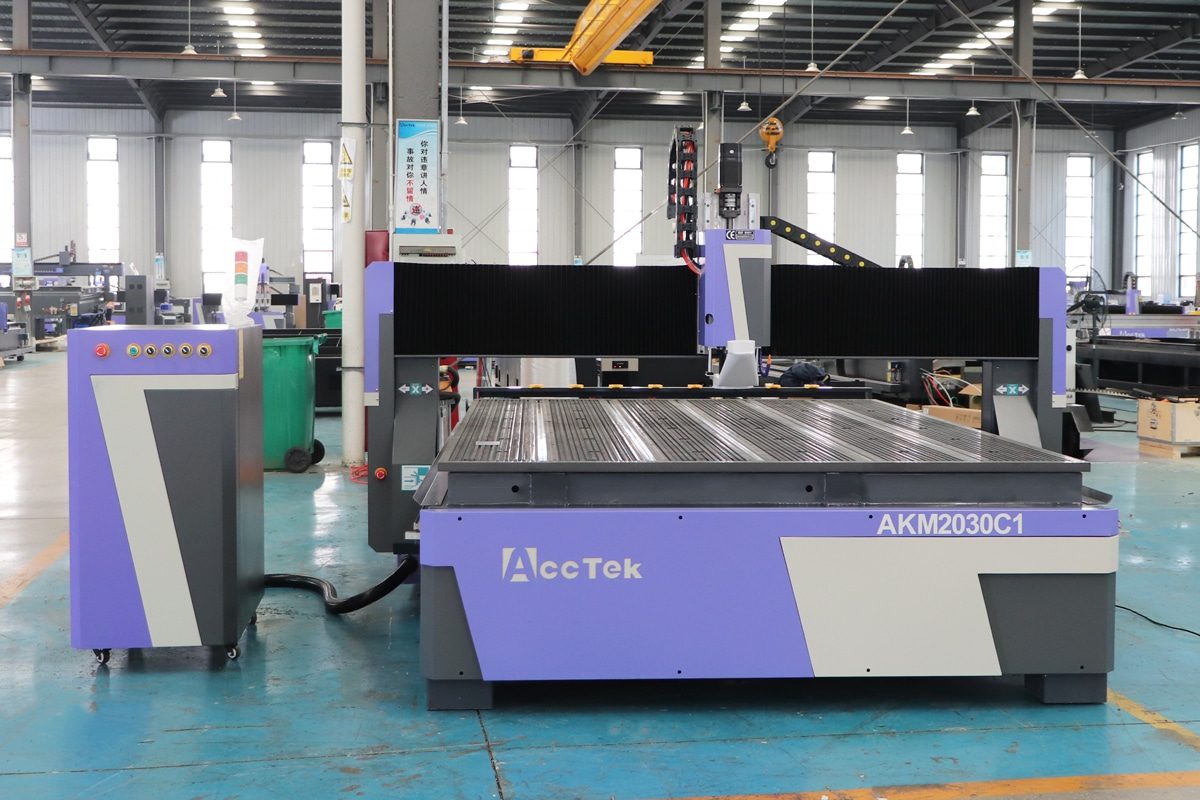
A CNC router is a powerful and versatile tool, but to unlock its full potential, it must be assembled and configured correctly from the beginning. Setting up a CNC router for the first time can feel overwhelming, especially if you’re new to computer-controlled machinery. However, with the right guidance and a systematic approach, the process becomes manageable.
This article provides a step-by-step guide to help you through your initial setup process—from unboxing and assembling the machine to installing software, calibrating axes, and running your first test job. No prior CNC experience is required. With a little patience and attention to detail, you’ll soon have your machine up and running smoothly, ready to take on your first projects with confidence.
Unboxing and Inspection
Setting up your CNC router begins with a careful unpacking and inspection process. This initial step ensures that your machine is complete, undamaged, and ready for assembly. It’s important to approach this stage methodically to avoid missing any crucial components or overlooking potential issues. You can break this process down into three key aspects:
Checklist of Components to Look For
Begin by reviewing the packing list or user manual provided by the manufacturer. This list typically includes major components like the machine frame, gantry, spindle, stepper or servo motors, control box, cables, limit switches, and any included software or accessories. Use this as a checklist and identify each item as you unpack it, setting parts aside in an organized manner for easier assembly.
Inspecting for Shipping Damage
Before removing each part from its packaging, examine the boxes and crates for any signs of impact, punctures, or mishandling during transport. Once unpacked, inspect the physical condition of each component, especially delicate items like rails, bearings, and electronics. Look for dents, cracks, rust, or loose parts. If you discover any damage, take clear photos and report it to the supplier immediately.
Verifying That All Parts Are Present
After checking and inspecting each item, make sure that every part listed is physically present and accounted for. Don’t overlook small but essential items such as screws, brackets, clamps, or power cords. Missing even a minor component can delay your setup, so it’s important to confirm completeness before moving on to the assembly stage.
Workspace Preparation
Before assembling your CNC router, it’s essential to prepare a safe, stable, and well-organized workspace. A proper setup environment not only ensures smoother installation but also contributes to the long-term accuracy, safety, and reliability of your machine. Here are the key factors to consider during workspace preparation:
Choose a Stable and Level Surface
Place your CNC router on a solid, vibration-free surface such as a sturdy workbench or dedicated stand. The base must be level to prevent frame distortion and uneven cutting performance. Use a bubble level or digital level to check the flatness before placing the machine. For larger or industrial-grade CNC routers, adjustable leveling feet are recommended to fine-tune the height and compensate for any floor irregularities. Ensuring a rock-solid, level foundation is the first step toward long-term cutting precision and reliability.
Ensure Proper Ventilation and Lighting
During operation, the machine can generate dust, fumes, or even smoke depending on the material being cut. Without adequate airflow, these byproducts can accumulate, posing health risks and affecting machine performance. Set up your CNC router in a well-ventilated area, preferably near a window, exhaust fan, or dust collection system. If you’re working in an enclosed space, consider installing an air filtration unit or fume extractor to maintain clean air quality.
In addition, ensure the workspace is brightly lit. Overhead LED lights combined with focused task lighting will help you see the cutting area clearly, making it easier to load materials, align tools, and monitor operations. Good visibility not only improves precision but also enhances safety by reducing the chance of mishandling or overlooking issues during machine use.
Electrical Requirements and Surge Protection
Most desktop or entry-level machines operate on standard 110V outlets, while larger industrial models may require 220V or three-phase power. Before plugging in your machine, check the voltage and current specifications provided by the manufacturer, and ensure your workspace is equipped with the proper outlet type and amperage. Use a dedicated circuit if possible, and always plug the machine into a surge protector or UPS (uninterruptible power supply) to protect sensitive electronics from power spikes or outages. Ensure all wiring is properly grounded to avoid static buildup and electrical hazards.
Recommended Safety Gear and Environmental Setup
Prepare your workspace with basic safety gear, including safety glasses, hearing protection, dust masks (if cutting wood or plastic), and gloves for handling sharp tools. The surrounding area should be clean, uncluttered, and spacious enough for material handling and safe movement around the machine. Ensure there is clear access to the machine’s emergency stop button and main power switch. Keep a fire extinguisher nearby and avoid placing flammable materials near the cutting area. A well-organized and safety-conscious environment allows you to focus on precision work with confidence and peace of mind.
A properly prepared workspace sets the stage for a successful CNC router installation and long-term operation.
Assembling the Machine
Once your workspace is prepared and all components have been inspected, the next step is to begin assembling your CNC router. This process may vary slightly depending on the machine model, but the general steps are similar for most desktop and industrial routers. Taking your time during assembly is crucial to ensure mechanical accuracy and long-term reliability.
Frame and Gantry Assembly
Make sure the surface you’re working on is level and clean to prevent twisting or uneven alignment during assembly. Tighten all bolts securely, but avoid over-tightening during the initial build to allow for adjustments. Once the base is square and level, mount the gantry uprights, then install the gantry beam across the X-axis. Ensure the gantry moves smoothly along its rails without binding, and double-check that it is level across its full travel range. Misalignment at this stage can lead to accuracy issues later, so double-check measurements and diagonals for squareness.
Spindle Mount Installation
After assembling the frame and gantry, the next step is to install the spindle mount. Begin by locating the Z-axis carriage on the gantry, then place the spindle mount on the Z-axis carriage and align it with the mounting holes. Make sure the mount is perfectly vertical and tightly fastened to avoid vibration or shifting during operation. If your machine uses a water-cooled spindle, this is also the time to connect coolant lines and the pump system.
Once the mount is secure, carefully insert the spindle into the clamp, ensuring that it’s centered and properly seated. Tighten the clamping screws evenly to hold the spindle firmly in place, but avoid over-tightening which could damage the spindle housing.
Cable Management
Use drag chains to guide cables along the X, Y, and Z axes, ensuring they move smoothly with the machine without stretching or snagging. Secure cables using cable ties, clips, or brackets, and avoid creating sharp bends or placing tension on connectors. Keep cables away from moving parts and high-heat areas. Labeling each cable can also help during troubleshooting or future upgrades. Proper cable management not only improves safety but also reduces wear and electrical noise.
Dust Collection (If Applicable)
If your CNC router will be used to cut materials like wood, MDF, installing a dust collection system is highly recommended. Start by mounting the dust shoe or dust boot to the spindle or spindle mount. Make sure the dust shoe moves freely with the Z-axis and doesn’t interfere with tool changes or material access. Then, connect a flexible hose from the dust shoe to your dust collection unit.
Secure the hose using clamps or brackets to prevent it from tugging on the spindle or getting caught in moving parts. If you’re using a drag chain system, you may be able to route the dust hose alongside the cables. For larger setups, consider integrating an automatic dust collection switch that activates with the CNC machine.
Tightening Bolts and Verifying Mechanical Stability
Once all major components of your CNC router are assembled, it’s critical to go through the entire machine and properly tighten all bolts and fasteners. After tightening, test the mechanical stability of the entire machine. Try moving the gantry, Z-axis, and spindle mount by hand to feel for any wobble or resistance. There should be smooth, firm movement with no play or shifting. Press gently on various parts of the frame to check for unwanted flex. If any movement is detected, recheck bolt tightness and frame alignment.
Carefully following the assembly instructions and paying attention to detail will ensure your CNC router is mechanically sound and ready for wiring, calibration, and operation. Take your time and don’t hesitate to refer to support documentation or video guides if available.
Connecting Electronics
With the mechanical assembly complete, the next step is to connect the electronic components of your CNC router. Taking a careful, organized approach to wiring is beneficial to ensure the machine functions correctly and safely during operation.
Control Box Connections
- Stepper/Servo Motor Connections: Connect the X, Y, and Z-axis motors to their corresponding ports on the control box. Most systems will have clearly labeled connectors or wiring diagrams. Ensure the plugs are fully seated and secure, and route the motor cables neatly to avoid tension or interference with moving parts.
- Limit Switches and Sensors: Attach the limit switches to their designated inputs on the control board. These switches help prevent the machine from moving beyond its physical limits. Double-check the polarity and wire labels to avoid connection errors. Test switch functionality later during the calibration stage.
- Spindle and Cooling System: If your CNC router uses a spindle motor, connect the spindle power cable to the control box or VFD (variable frequency drive), following manufacturer instructions. For water-cooled spindles, also connect the cooling pump and verify that hoses are securely attached and leak-free. Ensure the spindle rotates in the correct direction when powered on.
Connecting to the Computer
- Identify the Communication Port: Check your CNC controller or control box for the communication interface it supports. Most modern desktop CNC routers use USB or Ethernet connections, while older or industrial models may rely on a parallel port. Refer to the machine’s manual to locate the correct port and understand its pinout or driver requirements.
- Connect the Cable: Use a high-quality, shielded cable to connect your CNC machine to the computer. Plug one end into the controller and the other into your PC. If using a USB, ensure it is directly connected to a USB 2.0 or 3.0 port on your computer. For Ethernet connections, use a direct cable or connect through a router/switch if networking multiple devices.
Grounding and Cable Check
Finally, make sure the machine and control box are properly grounded to prevent static buildup or electrical faults. Do a final check of all wiring to confirm there are no loose connections, pinched cables, or exposed wires. A neat and well-labeled wiring layout will simplify troubleshooting and upgrades in the future.
Once all electronics are connected, you’re ready to install software and begin the machine calibration process. Proper wiring is the backbone of CNC reliability—take your time and double-check everything before powering on for the first time.
Installing Software and Drivers
After connecting your CNC router to your computer, the next step is to install the required software and drivers that allow your machine to operate correctly. This process ensures that your computer can communicate effectively with the CNC controller and execute cutting tasks with precision.
Choose the Right Control Software
Select a control software that is compatible with your CNC router’s controller board. Common options include Mach3, Mach4, GRBL-based senders (like Candle or UGS), and UCCNC. Your machine’s manufacturer will typically recommend specific software, so follow their guidance to avoid compatibility issues.
Install Machine Drivers and Firmware (If Needed)
Some CNC controllers, especially those using USB or Ethernet connections, require drivers to be installed on your computer. These drivers allow your operating system to recognize the controller board. In some cases, especially with GRBL or custom boards, you may also need to install or flash firmware using a tool like Arduino IDE.
Configure Software Settings
Once the software is installed, open the program and configure the basic settings. This includes:
- Selecting the correct COM port or IP address.
- Setting step/mm values for each axis.
- Defining machine limits, home positions, and soft limits.
- Setting the spindle control method (PWM, relay, VFD, etc.).
Refer to your machine’s documentation for exact configuration values. Some manufacturers provide a preconfigured profile or XML configuration file that can be imported to simplify the process.
Test the Communication
After setup, use the software to test connectivity by jogging each axis. The motors should respond smoothly without unusual noise or stalling. If the machine doesn’t respond, recheck the COM port, driver installation, or board firmware.
Proper installation of software and drivers ensures stable communication and accurate control of your CNC router. Take your time during this step, and don’t hesitate to consult manuals, forums, or manufacturer support if you encounter any issues.
Initial Machine Calibration
After your CNC router is assembled, wired, and successfully connected to the control software, the next step is initial machine calibration. Here’s how to approach initial calibration in a structured way:
Homing and Limit Switch Testing
Start by checking your limit switches if your machine has them. These are used to define machine boundaries and home positions. In your control software:
- Activate the “Home”command to send the machine to its default origin.
- Watch carefully to ensure each axis moves in the correct direction and stops when the switch is triggered.
- Verify switch function in the software’s diagnostic screen, each switch should register when pressed.
If your machine does not have limit switches, you will need to manually home each axis and define soft limits.
Setting Soft Limits and Machine Coordinates
Soft limits protect your machine from moving beyond its physical range. After confirming that homing works correctly:
- Define your machine’s travel dimensions in the control software.
- Enable soft limits to restrict motion within these boundaries.
- Set machine zero (machine origin) and work zero (your project’s origin) as needed for future jobs.
Axis Calibration (Steps per mm)
To ensure your machine moves the correct distance per command:
- Measure how far each axis moves using a dial indicator or ruler.
- In your control software, use the “Steps per mm calibration.”
- Command a known movement, then measure the actual travel distance.
- Enter the correction factor to fine-tune your steps/mm setting until the commanded and actual movements match closely.
Squaring the Gantry and Checking for Racking
Ensure that the gantry is square, and both sides of the Y-axis move evenly:
- Measure diagonals of the machine bed or use a framing square.
- If the gantry is not square, loosen the mounting bolts slightly, adjust, and retighten.
- Run a small rectangular test cut to visually check for squareness and racking.
Z-Axis Height and Tool Length Setup
Set the Z-axis zero point by manually lowering the bit until it just touches the material surface or a tool setter/probe pad. Some control software allows automated probing with a Z-probe, which increases accuracy.
Initial calibration is a one-time setup that lays the groundwork for all future CNC projects. A properly calibrated machine will cut more precisely, reduce material waste, and help prevent crashes. Once calibration is complete, you’re ready to load your first file and perform a test cut.
Running a Test Job
With your CNC router fully assembled, wired, connected, and calibrated, you’re now ready for one of the most rewarding steps: running your first test job. This process verifies that all systems are functioning properly and helps build your confidence before tackling more complex projects. It’s recommended to start with a simple design, such as a square or circle, to observe how your machine handles basic movements and cutting.
- Load a Simple G-Code File: Choose or generate a basic G-code file using your CAM software (such as Fusion 360, VCarve, or Carbide Create). Stick to a basic 2D shape to minimize complexity. Import the file into your control software and double-check the preview to ensure the toolpaths are correct.
- Secure the Workpiece: Place a piece of scrap material on the machine’s bed. Use clamps, double-sided tape, or a vacuum table to hold the workpiece firmly in place. Loose material can shift during cutting, causing damage or poor results.
- Set the Work Zero (Origin): Move the CNC router’s tool head to the starting point of your material and set this as your X, Y, and Z zero in the control software. If you’re using a Z-probe, run the probe cycle to set your Z-axis height accurately.
- Perform a Dry Run (Air Cut): Before cutting into material, run a dry test with the spindle off and the tool raised slightly above the surface. This allows you to confirm the motion path, check for any unexpected movements, and ensure the machine stays within the work area.
- Start the Cut: Turn on the spindle and start the job. Monitor the machine closely during the first few passes. Watch for issues like missed steps, incorrect depth, or tool chatter. Be ready to hit the emergency stop if anything goes wrong.
- Inspect the Result: Once the job is complete, inspect the test cut for accuracy, edge quality, and dimension. If everything looks good, congratulations—your CNC router is up and running! If there are issues, revisit your calibration, feed/speed settings, or workholding methods.
Running a test job is an essential milestone that confirms your setup is successful. It gives you a chance to verify machine behavior, spot early errors, and gain hands-on experience with the workflow. Start simple, learn from each job, and gradually move on to more advanced projects as your confidence grows.
Safety Reminders and Best Practices
Operating a CNC router comes with inherent risks, especially when dealing with high-speed spindles, sharp tools, and moving parts. Establishing a strong safety mindset from the beginning will help you avoid accidents, extend your machine’s life, and ensure smooth operation. Below are safety reminders and best practices that every CNC beginner should follow:
- Always Wear Personal Protective Equipment (PPE): Protect yourself by wearing safety glasses to guard against flying debris, hearing protection to reduce noise exposure, and a dust mask when cutting materials that produce fine particles. Avoid loose clothing or accessories that could get caught in moving parts.
- Never Leave the Machine Unattended While Running: Always supervise the CNC router while it’s in operation. Unexpected issues like tool breakage, loose materials, or software errors can cause crashes or even fires. Immediate attention can prevent damage or injury.
- Use Proper Workholding Techniques: Secure your material firmly using clamps, vacuum tables, or double-sided tape. Loose workpieces can shift mid-cut and cause tool breakage or flawed results. Double-check that clamps are out of the toolpath to avoid collisions.
- Keep the Emergency Stop Accessible: Ensure the emergency stop button is functional and easy to reach at all times. Familiarize yourself with how to stop the machine quickly in case of unexpected behavior.
- Maintain a Clean Work Area: Dust, chips, and clutter can interfere with machine motion and increase fire risk. Regularly clean your workspace and machine bed. Empty dust collection systems frequently to prevent buildup.
- Perform Regular Maintenance Checks: Routinely inspect belts, rails, motors, and lubrication points. A well-maintained machine performs better, lasts longer, and is less likely to develop unsafe mechanical issues.
CNC routers are powerful and precise tools—but only when operated responsibly. By following safety guidelines and best practices, you’ll protect yourself and your equipment, minimize downtime, and create a productive, professional workshop environment.
Summarize
Setting up your CNC router for the first time may feel challenging, but by carefully following each step, you’re laying the groundwork for safe and successful operation. Taking the time to do things right ensures your machine runs accurately, reliably, and efficiently. With your first test job complete, you’re now ready to explore the full capabilities of your CNC router and bring your creative or production ideas to life with precision and confidence. Continue reading “What Should You Avoid When Operating a CNC Router?” to make your projects go more smoothly and safely.
If you’re looking for a reliable and user-friendly CNC router to start your machining journey, AccTek CNC is an excellent choice. As a professional CNC router manufacturer in China, AccTek offers a wide range of machines tailored to different needs. Our machines are known for solid construction, precision, and ease of setup, making them ideal for first-time users. Backed by comprehensive technical support and detailed user guidance, AccTek ensures that you have everything you need to set up your CNC router smoothly and start creating with confidence.