

- 12-17 Min Read
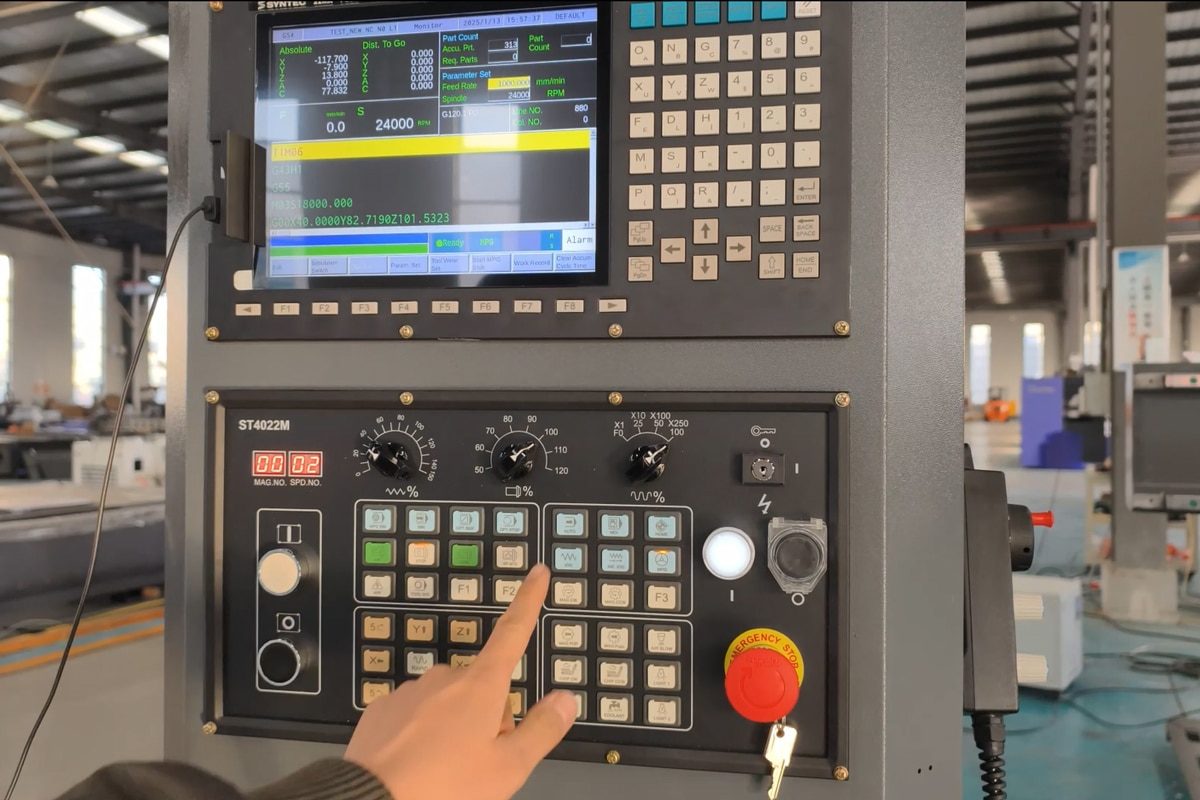
CNC routers have revolutionized modern manufacturing by enabling automated, precise, and repeatable machining processes across industries like woodworking, plastics, and signage. But the key to unlocking a CNC router’s full potential lies in its programming. Whether you’re crafting a simple part or executing a complex design, writing an effective CNC program ensures accuracy, efficiency, and safety.
This guide will walk you through the essential steps of programming a CNC router—from understanding the basics of G-code and toolpaths to using CAM software and transferring your program to the machine. Whether you’re a beginner learning to write your first code or a user looking to refine your workflow, this article provides the foundational knowledge and practical insights to help you program with confidence.
Understanding the Basics of CNC Programming
Before diving into writing or generating code for a CNC router, it’s important to understand how these machines interpret instructions. CNC (Computer Numerical Control) programming is the process of creating a set of commands that tell the machine how to move, at what speed, and along which path to cut, carve, or shape a material.
Common CNC Router Languages
While G-code is the most widely recognized language in CNC programming, CNC routers can be controlled using several different programming languages and formats, depending on the machine’s controller and software ecosystem. Understanding these languages helps ensure compatibility and flexibility across different workflows.
- G-code: It is the standard language most CNC routers use to control movement and machining operations. G-code consists of alphanumeric instructions that direct the machine to move along specific coordinates, set feed rates, and execute toolpaths. Common commands include G0 for rapid positioning and G1 for linear cutting. G-code is typically generated by CAM software, but understanding its structure helps in customizing or troubleshooting CNC programs.
- M-code: It is used in conjunction with G-code to control non-movement-related machine functions. These include starting or stopping the spindle (M03/M05), turning on coolant (M08), or ending the program (M30). M-code commands can vary slightly depending on the machine or controller manufacturer, so reference the controller manual to ensure precise usage.
- Proprietary post-processors: custom formats used by specific CNC machine brands or controllers. While the underlying toolpath logic still gets converted into machine-readable commands, the syntax or structure may differ from standard G-code. Examples include ShopBot’s .sbp files, Biesse’s BPP format, and specialized outputs for controllers like DSP, Fanuc, or Mach3. CAM software typically offers post-processor options to ensure compatibility with these unique formats.
Manual vs. CAM-Based Programming
Manual programming involves writing G-code line by line using a text editor or directly on the machine’s interface. This method gives the operator full control over each movement, feed rate, spindle speed, and tool change. It is best suited for simple operations such as drilling a hole, cutting basic shapes, or performing test movements. Manual programming requires a deep understanding of G-code syntax, coordinate systems, and machining logic. While it offers precision and customization, it is time-consuming and prone to human error, especially with complex geometries or multiple toolpaths.
CAM-generated code, on the other hand, is created using Computer-Aided Manufacturing software. After a CAD model or 2D drawing is imported, the operator sets machining parameters such as tool type, cutting depth, feed rate, and strategy. The CAM software automatically calculates the toolpaths and converts them into G-code using a built-in or customized post-processor. This method drastically reduces programming time, minimizes errors, and allows for simulation before machining. It’s especially beneficial for complex parts, 3D contours, and multi-operation jobs, making it the preferred approach in most modern CNC workflows.
By mastering the basics of CNC programming, you lay the foundation for more efficient and precise machining, whether you’re writing code by hand or relying on advanced software tools.
Planning Before Programming
Effective CNC router programming starts long before any code is written. Proper planning ensures accuracy, reduces the risk of errors, and improves overall machining efficiency. This phase involves making critical decisions about materials, tools, designs, and coordinate systems.
- Choose the Material and Understand Its Properties: Different materials require different cutting speeds, tool types, and depths of cut. Common CNC materials include wood, acrylic, aluminum, MDF, and composites—each with unique machining characteristics. Softer materials like foam or softwood can be cut quickly with minimal resistance, while harder materials like metal require slower speeds and more robust tools.
- Select the Right Tooling: Tool selection depends on the operation (cutting, engraving, drilling), material type, and desired finish. Common options include end mills, ball nose bits, V-bits, and surfacing tools. Ensure the tool size matches the design details and that the machine’s spindle can accommodate the tool’s dimensions and RPM requirements.
- Create or Import the Design File: Before writing any CNC code, you need a digital design of the part or object you plan to machine, usually created in CAD software. Supported formats like DXF, SVG, or STL can be imported into CAM software for toolpath creation. Clean, accurate geometry simplifies programming and reduces potential errors.
- Determining the Workpiece Size and Origin Point: Input the material’s length, width, and thickness into your CAM software or CNC controller to ensure accurate toolpath calculation and avoid overrunning machine limits. Then, you must also decide on the work origin, which is the reference point for all tool movements. This is often located at the bottom-left corner or center of the workpiece’s top face.
- Determine the Coordinate System and Axis Orientation: Ensure your machine and software use the same coordinate system (usually a right-hand Cartesian system with X, Y, and Z axes). The coordinate system in your software must match the physical movement of your machine. Double-check axis directions to avoid mirrored or inverted cuts, and verify that the Z-axis zero point corresponds to the top or bottom of the stock as required.
- Plan Machining Strategy: Decide how the job will be machined, what operations come first (e.g., drilling before cutting), what toolpaths are required (pocketing, profiling, engraving), and how deep each pass should be. This sequencing reduces tool wear and improves cut quality.
Poor planning often leads to wasted material, tool breakage, or programming errors—so don’t skip this essential step. Solid pre-programming planning is the foundation of every precise and reliable CNC routing operation. Taking the time to plan your CNC job thoroughly ensures that your machine operates smoothly and your final product meets the desired specifications.
Using CAM Software to Generate CNC Programs
For most modern CNC router users, the most efficient and accurate way to create programs is by using CAM software. CAM software converts your design files into machine-readable G-code, allowing you to focus on the machining strategy rather than the technical details of manual programming. Here’s how the process works, step by step:
Introduction to Popular CAM Tools
Choosing the right CAM software is beneficial for generating accurate and efficient CNC programs. Several popular CAM tools cater to different skill levels, design needs, and machining applications:
- Fusion 360: Developed by Autodesk, Fusion 360 is a powerful, cloud-based CAD/CAM platform suitable for both 2D and 3D machining.
- VCarve: VCarve by Vectric is a user-friendly CAM program designed primarily for CNC routing and woodworking.
- Aspire: Also from Vectric, Aspire includes all the features of VCarve but adds advanced 3D modeling and relief carving capabilities.
- ArtCAM: Though no longer actively developed, ArtCAM remains in use by many for artistic and relief-based applications.
These tools vary in complexity, but all support toolpath generation and G-code output tailored for CNC routers.
Importing CAD Files
Before generating toolpaths, you must first import your design into the CAM software. Common file types include:
- DXF (Drawing Exchange Format): Widely used for 2D vector drawings such as outlines, profiles, and flat patterns.
- SVG (Scalable Vector Graphics): Ideal for text, logos, and artistic shapes, often created in graphic design software like Adobe Illustrator or Inkscape.
- STL (Stereolithography): Common for 3D models used in relief carving or 3D contouring operations.
- EPS, AI, and PDF: Supported by some CAM tools for graphic or signmaking work.
Once imported, it’s important to check the design for accuracy, ensuring lines are closed, shapes are properly scaled, and no duplicate paths exist.
Generating Toolpaths
Toolpaths are the specific paths the cutting tool will follow to machine the part. CAM software provides different strategies depending on the operation:
- Profiling: Cuts around the perimeter of a shape.
- Pocketing: Clears material inside a closed boundary to create recesses or cavities.
- Drilling: Moves the tool vertically to create holes at specific points.
- Engraving: Creates fine detail or text on the material surface.
Proper toolpath generation transforms your design from digital intent into precise physical action.
Setting Machining Parameters
After generating toolpaths in your CAM software, the next step is to define the key cutting parameters that control how the CNC router behaves during machining.
- Feed Rate (F): The speed at which the tool moves through material, typically measured in millimeters per minute (mm/min) or inches per minute (IPM).
- Spindle Speed (S): The rotational speed of the cutting tool, measured in revolutions per minute (RPM). The ideal spindle speed depends on the tool diameter and the material.
- Cut Depth: How deeply the tool cuts per pass, affecting tool load and surface finish. The depth per pass should be 0.5 to 1 times the tool diameter for most materials.
- Step-Over: The horizontal distance between passes in pocketing or surfacing. It’s usually defined as a percentage of the tool diameter.
These values depend on the material, tool type, and desired finish. CAM software often provides presets, but they can be customized for specific projects.
Post-Processing to Generate G-code
Once the toolpaths and parameters are set, the CAM software uses a post-processor to convert everything into machine-readable G-code. This step ensures compatibility with your specific CNC controller (e.g., Mach3, GRBL, or DSP). The output is typically saved as a .nc, .tap, or .gcode file, ready to be transferred to the CNC router machine.
Previewing Toolpaths and Verifying Output
Before transferring your G-code to the CNC router, it’s necessary to preview the toolpaths and verify the output. This step allows you to visually inspect how the machine will behave.
- Toolpath Simulation in CAM Software: Most modern CAM software includes a built-in simulation feature that visually displays the tool’s path across the workpiece.
- Collision and Boundary Checks: Previewing toolpaths helps detect potential collisions between the tool and clamps, fixtures, or material edges.
- Verifying Cutting Parameters: During the preview, you can confirm that the correct tools, feed rates, spindle speeds, and cut depths are being applied to each operation.
This is an important step in the programming process for detecting errors early and optimizing toolpaths for speed and safety.
Using CAM software simplifies the CNC programming process and significantly improves consistency, especially for complex or multi-step projects. By automating code generation and providing visual feedback, CAM tools allow users to focus more on design and strategy while still producing high-quality, machine-ready results.
Writing G-Code Manually
While most modern CNC users rely on CAM software to generate G-code automatically, understanding how to write G-code manually is valuable, especially for simple jobs, troubleshooting, or optimizing specific toolpaths. Manual programming offers full control over machine behavior and helps build a deeper understanding of how your CNC router interprets instructions.
Structure of a Basic G-Code Program
A G-code program is a plain text file (.nc or .tap) made up of sequential commands that the CNC router reads line by line. Each line, often called a “block,” contains a combination of codes that define motion, spindle settings, and operational commands. A typical program includes:
- Initialization commands (e.g., unit selection, motion mode)
- Spindle and feed settings
- Movement commands
- End-of-program instructions
Commonly Used G-Code Commands
Here are some of the basic and frequently used commands in manual programming:
- G21 – Set units to millimeters (use G20 for inches)
- G90 – Enables absolute positioning, meaning all coordinates reference the work origin
- G0 X__ Y__ Z__ – Rapid movement to a position without cutting
- G1 X__ Y__ Z__ F__ – Linear cutting movement at a defined feed rate
- M03 – Turn spindle on (clockwise)
- M05 – Turn the spindle off
- M30 – Ends the program and rewinds to the beginning for re-execution if needed
Example: Cutting a Simple Square
Below is a sample G-code snippet to cut a 50mm x 50mm square, starting from the bottom-left corner:
- G21; Use millimeters
- G90; Absolute positioning
- G0 Z5; Raise tool above workpiece
- G0 X0 Y0; Move to starting point
- M03 S12000; Spindle on at 12000 RPM
- G1 Z-2 F300; Lower tool to cutting depth at 300 mm/min
- G1 X50 Y0 F600; Cut first edge
- G1 X50 Y50; Cut second edge
- G1 X0 Y50; Cut third edge
- G1 X0 Y0; Cut fourth edge (return to start)
- G0 Z5; Lift tool
- M05; Spindle off
- M30; End program
Tips for editing and debugging G-code
Even with CAM-generated code, it’s often necessary to review, edit, or troubleshoot G-code manually, especially for custom modifications, error corrections, or optimizing machine behavior. Here are some key tips to help you edit and debug G-code effectively:
- Use Comments for Clarity: Insert comments using a semicolon ; to explain what each block of code does. Clear comments make it easier to identify sections during troubleshooting or future edits.
- Start With a Dry Run: Always simulate in your CAM software or perform an “air cut”before actual cutting to check motion paths. This helps catch errors like incorrect coordinates, plunging too deep, or unexpected tool movements.
- Start Simple: Practice on basic shapes and gradually introduce curves (G2, G3), tool changes, and canned cycles. If you’re writing or editing code for a complex part, split the job into smaller segments.
- Stay Organized: Indent blocks logically and follow a consistent formatting style. Double-check that your coordinates align with the machine’s origin and direction.
Mastering manual G-code programming builds your confidence and equips you with the skills to tweak or debug generated code, giving you more flexibility and control over your CNC projects.
Transferring the Program to the CNC Router
Once your G-code program is generated and verified, the next step is transferring it to the CNC router for execution. How you transfer the program depends on the machine’s controller type and available connectivity options, but the overall process is similar across most setups.
Supported File Formats and Transfer Methods
CNC routers typically accept G-code files in formats like .nc, .tap, .gcode, or .txt, depending on the machine and post-processor. There are several common ways to transfer the program:
- USB Flash Drive: Many desktop and industrial CNC routers come with a USB port. Simply save the G-code file to a flash drive, insert it into the machine’s control panel, and load the file through the interface.
- SD Card: Some compact CNC routers or hobbyist machines use SD cards for file transfer.
- Direct PC Connection: For CNC routers controlled via software like Mach3, UCCNC, or GRBL, you can send G-code directly over a USB or serial connection from your computer.
- Network or Wi-Fi Transfer: Higher-end industrial systems may support file transfer over a local network or cloud-based platform.
Loading the File into the Controller
Once the file is on the machine or connected computer:
- Open the CNC control software or DSP controller menu.
- Navigate to the correct drive or folder to locate your G-code file.
- Load the program and review the file name, length, and estimated runtime.
Performing Pre-Run Safety Checks
Before starting the actual job, perform these important safety steps:
- Check tool installation and tightness.
- Verify that the correct tool and material are in place.
- Ensure the origin point (zero) is correctly set on the material.
- Make sure the spindle speed and feed rate match what was programmed.
- Remove any obstructions or loose objects from the work area.
Dry Run or Air Cut
For added safety, especially with new or edited programs, perform a dry run—executing the toolpath above the material without cutting. This allows you to observe the motion and confirm the accuracy of the toolpaths before committing to a full cut.
By carefully transferring and verifying your G-code program at the machine, you reduce the risk of errors, crashes, or wasted material. This step ensures your CNC router is fully prepared to execute the job as planned, resulting in a smooth and successful machining operation.
Testing and Running the Program
With the G-code successfully transferred to your CNC router and all safety checks complete, you’re ready to run the program. However, before cutting into your material, it’s wise to perform a controlled test to confirm everything is functioning as intended.
Starting the Program and Monitoring the Cutting Process
Once your CNC router is fully set up and the G-code is loaded, it’s time to start the machining operation. Initiate the program through your CNC controller or software interface. Some machines require you to manually turn on the spindle (M03), while others do it automatically. Monitor the cutting process continuously, especially during the first run of a new program. Watch for:
- Correct toolpath following: Ensure the tool is moving along the expected path without deviation.
- Smooth material removal: Chips or dust should be cleanly expelled, not burnt or fused.
- Tool vibration or chatter: These may indicate incorrect speeds or a loose tool.
- Z-axis plunges: Confirm that the bit enters the material gradually and to the correct depth.
Adjusting Feeds and Speeds if Needed
Even with careful CAM settings, real-world conditions sometimes require adjustments. Many CNC controllers allow on-the-fly tweaking of feed rate and spindle speed using override controls.
- Feed Rate Adjustment: If the machine is cutting too aggressively, causing vibration, rough edges, or missed steps, you may need to lower the feed rate. Conversely, if cutting seems sluggish and produces excessive heat or tool marks, increasing the feed rate can improve chip evacuation and surface finish.
- Spindle Speed Adjustment: If the spindle is spinning too fast, it can cause burning, especially on wood or plastics. If it’s too slow, the tool may not cut cleanly or might push instead of slicing. Adjusting the spindle speed slightly up or down can help dial in the optimal cutting conditions.
Common Troubleshooting Techniques
Unexpected issues may arise during cutting. Here are some common problems and how to address them:
- Missed Steps: If the tool suddenly shifts off-course, the stepper or servo motor may have lost steps due to excessive resistance or speed. Reduce feed rate or depth per pass and ensure your machine is properly lubricated and tensioned.
- Tool or Drill Deformation: Overheating, incorrect spindle speed, or using a dull bit can lead to bent or broken tools. Use appropriate RPMs, inspect tools before use, and avoid forcing deep cuts in a single pass.
- Unexpected Tool Movement: Random motion or erratic plunging may result from incorrect origin settings, bad G-code, or electrical interference. Recheck your zero point, review the toolpath in your CAM software, and ensure secure cable connections and grounding.
By carefully starting, monitoring, and adjusting during operation, you can ensure each CNC job runs smoothly and produces high-quality results with minimal downtime or material waste.
Summarize
Programming a CNC router involves more than just generating G-code—it’s a structured process that starts with careful planning, continues through precise design and toolpath setup, and ends with safe, efficient machine execution. Whether using manual coding for simple tasks or leveraging CAM software for complex projects, understanding each step ensures accuracy, minimizes errors, and maximizes productivity. By following this step-by-step guide, you’ll be better equipped to confidently and precisely turn your ideas into finished parts.
If you’re looking for a reliable and well-established CNC router manufacturer, AccTek CNC is a strong choice. As a professional manufacturer based in China, AccTek offers a comprehensive range of CNC routers—including 3-axis, 4-axis, 5-axis, and ATC models—designed for applications across woodworking, signage, and more. Contact us today to get professional CNC solutions that match your work needs, budget, and goals.