

- 8-12 Min Read
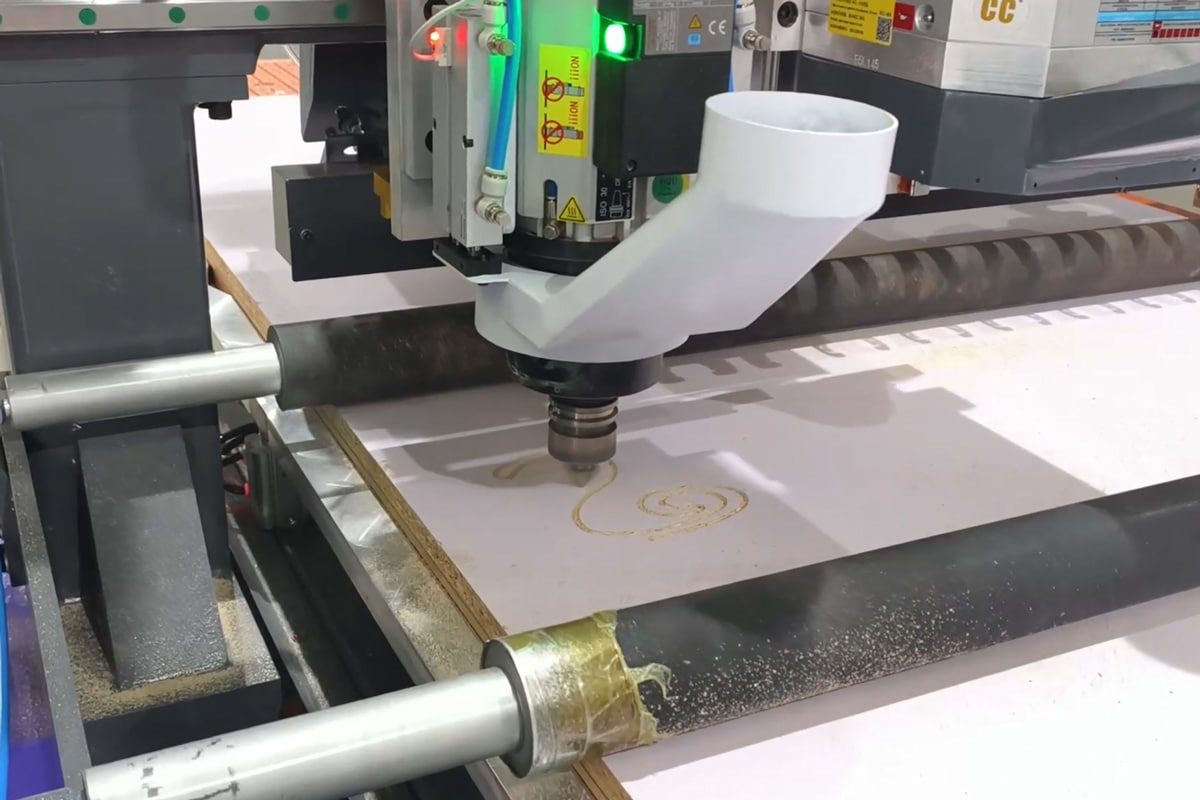
Precision is the foundation of successful CNC routing, and one of the most common frustrations faced by operators is a machine that fails to cut to the correct depth. Depth issues often appear as shallow cuts that don’t go all the way through the workpiece or cuts that are too deep, damaging the spoilboard or the part itself. If your CNC router isn’t cutting to the correct depth, the issue could stem from several possible causes.
Incorrect cutting depths can be caused by simple tool length errors and uneven material surfaces, to more complex issues such as Z-axis calibration failures or mechanical wear. In this article, we’ll explore the most common reasons why your CNC router might not be cutting at the intended depth and guide you through practical steps to troubleshoot and fix the problem.
Understanding CNC Cutting Depth
Cutting depth refers to how deep the CNC router’s tool penetrates into the material during a machining operation. In most cases, the cutting depth is controlled by the Z-axis movement of the router, and it must be carefully set in both the design (CAM) software and the machine’s control system. There are typically two types of cutting depths to be aware of: per-pass depth and final depth. The per-pass depth determines how much material the tool removes in each pass, while the final depth is the total depth the tool reaches by the end of the operation.
Impact of Improper CNC Cutting Depth
Cutting depth plays a major role in multiple areas of CNC performance:
- Quality: If the router cuts too shallow, features may be incomplete or ill-fitting; if it cuts too deep, it can cause overcutting, tool marks, or structural damage to the part. Poor depth control often results in scrap parts, rework, and reduced product reliability.
- Safety: Improper cutting depth can lead to unsafe operating conditions. Overly deep cuts may cause the router bit to bind or break, increasing the risk of flying debris or machine damage. It can also strain the spindle and motors, potentially leading to overheating or mechanical failure.
- Productivity: Depth inaccuracies disrupt workflow by requiring repeat jobs, extra setup time, or manual corrections. This not only wastes materials but also reduces overall throughput.
Accurate control of these depths ensures clean cuts, prevents tool overload, and avoids unnecessary wear on the machine.
Difference Between Intended vs. Actual Depth
The intended depth refers to the cutting depth that is programmed in the CAM software or CNC controller, this is the depth you expect the tool to reach based on your design. It is typically defined in the toolpath settings and takes into account material thickness, tool capabilities, and project requirements. The actual depth is the depth the CNC router physically achieves during the cutting process. When there’s a mismatch between the intended and actual depth, it usually indicates an issue in the setup or operation.
Common Causes and Troubleshooting
When your CNC router isn’t cutting to the correct depth, the problem is often linked to calibration, mechanical integrity, software configuration, or material setup. Below are the most common causes along with suggested troubleshooting steps to help you identify and fix the issue.
Incorrect Tool Length Setting
One of the most common reasons a CNC router fails to cut to the correct depth is an incorrect tool length setting. If this value is off, the Z-axis movements will be miscalculated, leading to cuts that are either too shallow or too deep. Here is the troubleshooting:
- Re-zero the tool: Manually set the Z-axis zero by lowering the tool to the material surface, or use a Z-touch probe for greater accuracy.
- Check for tool changes: If you swap out bits mid-job without resetting the tool length, the machine will continue to operate with outdated Z-values.
- Use consistent reference surfaces: Make sure you’re always zeroing from the same surface and your CAM software matches this reference.
Z-Axis Calibration Issues
Z-axis calibration errors occur when the CNC controller’s settings don’t accurately reflect the physical movement of the Z-axis. This usually happens due to incorrect steps-per-unit values, improper microstepping configurations, or mechanical issues. Here is the troubleshooting:
- Verify steps-per-unit settings: Check your CNC control software (e.g., GRBL, Mach3, LinuxCNC) and confirm the Z-axis steps/mm (or steps/inch) value matches your machine’s hardware.
- Test with a precision block: Use a dial indicator or digital depth gauge to command a known movement and compare the actual travel. If there’s a mismatch, recalibrate the steps-per-unit accordingly.
Loose or Worn Mechanical Components
Over time, the mechanical components of your CNC router can become loose or worn. This includes lead screws, couplers, linear rails, anti-backlash nuts, bearings, and mounting brackets. When these parts are not properly secured or show signs of wear, they introduce backlash in the Z-axis movement. Here is the troubleshooting:
- Inspect all fasteners: Check the Z-axis motor mounts, lead screw brackets, and tool plate screws to ensure nothing is loose.
- Examine the lead screw and couplers: Ensure that the lead screw is firmly connected to the motor with a properly secured coupler.
- Check linear rails and bearings: Inspect for debris, dry spots, or signs of wear. Clean and lubricate regularly to ensure smooth and accurate vertical movement.
- Replace worn parts: If anti-backlash nuts or lead screws are visibly worn or cause excessive backlash, replace them promptly.
Software or G-code Errors
If your CAM settings are incorrect, the generated toolpath may instruct the router to cut at the wrong depth. Incorrect toolpath parameters, improper Z-zero references, or errors during post-processing can result in the machine receiving inaccurate depth commands. Here is the troubleshooting:
- Check depth settings in CAM software: Ensure the correct cutting depth, material thickness, and clearance height are set.
- Simulate the toolpath: Use your CAM software or a G-code simulator to visually check the cutting depth before running it on the machine.
- Verify post-processor configuration: Make sure the post-processor used to generate the G-code is fully compatible with your CNC controller.
- Avoid unit mismatches: Confirm that your design, CAM, and machine all use the same unit system—mm or inches.
Material Surface Not Flat
Warped or uneven materials lead to variations in actual cut depth across the workpiece. If the material isn’t perfectly flat relative to the machine’s XY plane, the tool will cut deeper in some areas and shallower in others, even if the Z-axis movement is accurate. Here is the troubleshooting:
- Surface the material: Use a surfacing bit to flatten the workpiece or the spoilboard before running critical jobs.
- Secure the material properly: Use clamps, screws, or vacuum hold-downs to pull the material flat against the spoilboard.
- Consider using shims or cauls: For slightly warped material, strategically placed shims or pressure bars can help flatten problem areas.
Tool Wear or Deflection
A worn or dull tool may not penetrate the material as intended, resulting in shallower cuts. Additionally, tool deflection can occur when using long, thin tools or applying excessive feed rates. This deflection causes inconsistent cutting depth and surface finish. Here is the troubleshooting:
- Inspect the cutting edge: If the edges appear rounded, chipped, or discolored, it’s time to replace the bit.
- Use the correct tool type: Choose a tool suitable for your material, with the proper flute count and geometry to handle the cut without flexing.
- Shorten the tool overhang: Minimize the length of the bit sticking out of the collet to reduce leverage and vibration, which helps prevent deflection.
- Adjust feed and speed: Lower the feed rate or reduce depth per pass to ease the load on the tool, especially when working with tough materials.
Incorrect Workpiece Clamping
Improper or insufficient clamping can cause the workpiece to shift, lift, or vibrate during cutting, leading to inconsistent or incorrect cutting depth. Here is the troubleshooting:
- Check clamp placement and pressure: Ensure the material is held firmly in place, with clamping pressure evenly distributed across the surface. Avoid placing clamps only at the edges, which can allow the center to bow upward.
- Use additional hold-down methods: Consider combining clamps with vacuum tables, screws, double-sided tape, or toe clamps, especially for irregular or thin materials.
- Avoid excessive force: Over-tightening clamps can warp the material, lifting it off the spoilboard and creating depth variations.
- Test before starting: Gently try to move the workpiece after setup. If it shifts with light pressure, it’s not secure enough for routing.
Controller or Stepper Motor Issues
Missed steps due to inadequate motor current or driver malfunction can cause Z-axis errors. Likewise, signal interference, controller misconfiguration, or outdated firmware can cause inaccurate Z-axis responses. Here is the troubleshooting:
- Check for missed steps: Listen for a grinding or clicking sound during Z-axis movement, which often indicates the motor is skipping steps under load.
- Inspect wiring and connectors: Loose or damaged cables between the stepper motor and controller can cause inconsistent signals. Ensure everything is securely connected.
- Adjust motor current settings: Too little current can cause skipped steps, while too much may lead to overheating. Use manufacturer guidelines to fine-tune the current via DIP switches or software.
- Monitor motor temperature: If the Z-axis motor gets too hot to touch, it may be overworked or poorly ventilated. Install heatsinks or improve airflow if needed.
- Test driver functionality: Swap the Z-axis driver with another axis to see if the problem persists. If it does, the driver may be failing.
- Review controller settings: Ensure your controller firmware is properly configured, especially for steps per unit, acceleration, and max feedrate settings.
When your CNC router isn’t cutting to the correct depth, it’s often the result of a combination of small issues rather than a single major fault. By methodically checking each potential cause and applying the right troubleshooting steps, you can quickly identify the problem and restore your machine’s performance.
Best Practices to Prevent Depth Inaccuracy
Preventing depth-related issues in CNC routing starts with a proactive approach to machine setup, maintenance, and operation. By following a set of best practices, you can significantly reduce the chances of cutting too shallow or too deep and maintain the precision your projects demand.
- Always Zero the Tool Correctly: Before every job, ensure the tool is accurately zeroed to the material surface or spoilboard, depending on your CAM settings. Use a Z-probe for precision or manually zero with feeler gauges and care.
- Regularly Calibrate the Z-Axis: Periodically verify and calibrate your Z-axis steps-per-unit. Use a dial indicator or test cuts with a digital caliper to compare commanded depth versus actual travel.
- Inspect and Maintain Mechanical Components: Tighten loose parts, check couplings and linear rails, and replace worn lead screws or anti-backlash nuts. Proper lubrication and regular inspections help maintain smooth Z-axis motion.
- Use Quality and Well-Matched Tools: Choose high-quality, sharp tools with appropriate geometry for your material. Keep the tool overhang as short as possible to reduce deflection and ensure consistent cutting performance.
- Flatten the Spoilboard and Work Surface: A level spoilboard and properly secured material ensure the cutting surface is uniform. Regularly surface the spoilboard to eliminate unevenness caused by wear or debris.
- Verify CAM and Post-Processor Settings: Double-check cutting depths, origin points, and tool setups in your CAM software. Make sure your post-processor is correctly configured for your CNC controller.
- Use Proper Clamping Techniques: Secure the workpiece evenly and firmly to prevent movement or lifting. Consider using vacuum tables, screws, or hold-down jigs when appropriate.
- Perform Test Cuts: When in doubt, run a test cut on scrap material to verify depth accuracy and machine behavior before committing to your final workpiece.
Implementing these practices not only ensures accurate depth control but also contributes to the overall performance, safety, and longevity of your CNC router.
When to Seek Professional Help
While many depth-related issues on a CNC router can be resolved through careful troubleshooting and regular maintenance, some problems may require the expertise of a professional technician. Knowing when to call for help can save you time, prevent further damage, and ensure your machine operates safely and efficiently. Seek professional assistance if:
- Depth issues persist despite verifying zeroing, calibration, and CAM settings.
- You experience inconsistent or erratic Z-axis movement, especially if it’s accompanied by grinding noises or motor overheating.
- There are signs of electrical faults, such as stepper drivers failing, controller errors, or sudden machine reboots.
- Mechanical wear is beyond basic maintenance—such as damaged lead screws, faulty ball screws, or play in linear guides that affect accuracy.
- You suspect firmware or software corruption that affects how the machine interprets depth commands.
- You’re working with high-precision or production-critical jobs and need professional calibration for maximum repeatability.
Calling a certified technician or your machine’s support team at the right time can prevent costly downtime and restore your CNC router to full working condition more efficiently than trial-and-error fixes.
Summarize
Cutting depth issues are among the most common—and frustrating—problems CNC router users encounter. Fortunately, with a solid understanding of attention to calibration and a methodical troubleshooting approach, most problems can be quickly identified and resolved. Implementing best practices, you can prevent many depth inaccuracies before they occur. And when the issue goes beyond routine fixes, don’t hesitate to seek help from a qualified technician. With the right care and attention, your CNC router can continue delivering precise, reliable results on every project.
If you’re looking for a reliable and high-performance CNC router, AccTek CNC is a trusted manufacturer in China known for its wide range of CNC router solutions. Whether you need a machine for woodworking or complex engraving tasks, we offer models tailored to various industries and production needs. Backed by professional technical support and a strong commitment to customer service, AccTek CNC ensures that every user receives both a high-quality machine and the guidance needed to achieve precise and consistent results.